
How to Generate a PDF with One Word Per Page (Flashcards, Tickets & Signs)
A step-by-step guide to creating printable flashcard PDFs, numbered tickets, single-word signs, and classroom materials using a free browser-based generator — no software install required.
- ✓ Maximum readability for sight-word drills and classroom flashcards.
- ✓ Clean numbered tickets for raffles, events, and inventory labels.
- ✓ High-impact single-word slides for presentations and video projects.
- ✓ 100% private — runs entirely in your browser with zero uploads.
Common Use Cases
A PDF with a single word or number on each page sounds simple, but it is surprisingly difficult to produce quickly using traditional tools like Microsoft Word, Google Docs, or Adobe InDesign. Each approach requires manual page breaks, font size guessing, and careful alignment.
Here are the most common scenarios where this format is essential:
📚 Educational Flashcards
Teachers create sight-word flashcards, vocabulary lists, multiplication tables, or phonics cards. Print on card stock, laminate, and use in classroom drills or at-home reading practice.
🎟️ Numbered Tickets & Labels
Generate sequences like 001–500 for raffle tickets, coat check numbers, queue numbering, or warehouse inventory labels. Print on pre-cut card stock or adhesive label sheets.
🪧 Signs & Placards
Quick single-word signs for events ("WELCOME", "EXIT", "RESERVED"), table numbers for weddings, or directional arrows. Select landscape orientation and a large font for maximum visibility.
🎬 Presentation Slides
Minimalist single-word slides for dramatic presentations, countdowns, or lyric videos. Use bold colors and landscape orientation for a cinematic feel.
Step-by-Step: Generate Your Flashcard PDF
Enter Your Words or Numbers
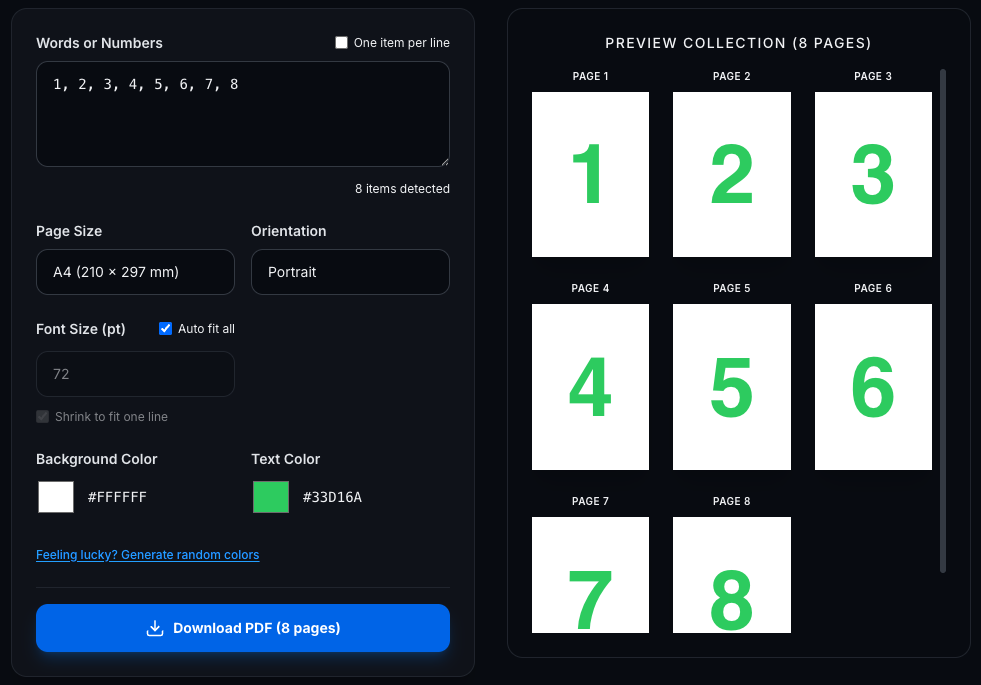
Type or paste your list into the text box. By default, words are separated by commas (e.g. apple, banana, cherry). If your words contain commas, check the "One item per line" option to split on newlines instead. For numbered sequences, just type 1, 2, 3, 4, 5 and so on.
Configure Page Size & Orientation
Choose from standard paper sizes: A4 for European standard, US Letter for North American printers, A5 for half-sheet cards, or Index Card for small flashcards. Select Portrait for tall cards or Landscape for wide signs and presentation slides.
Set Font Size & Colors
Use the "Auto fit all" option to let the tool automatically calculate the largest possible font size for each word. Or set a custom point size (e.g. 72pt) and enable "Shrink to fit one line" to prevent long words from overflowing. Pick your background and text colors — or hit "Generate random colors" for instant inspiration.
Preview & Download
The preview collection shows every page as a thumbnail, so you can see your entire PDF at a glance before downloading. When you're happy with the layout, click "Download PDF" to save the file. The PDF is generated using WebAssembly directly in your browser — no server upload, no waiting.
Pro Tips for Better Results
| Scenario | Recommended Settings |
|---|---|
| Kindergarten sight words | A4 Portrait, Auto fit, high-contrast colors (white bg / black text) |
| Raffle tickets (1–500) | Index Card, Portrait, fixed 48pt font, custom colors for branding |
| Event signs | A4 Landscape, Auto fit, bold background color for visibility |
| Presentation slides | US Letter Landscape, Auto fit, dark bg / light text for projector |
| Mixed-length vocabulary | A4 Portrait, fixed 60pt with "Shrink to fit" enabled |
How to Print Your Flashcards Efficiently
Once you download your PDF, you have several options for physical printing:
- One word per sheet: Print normally for full-size signs, classroom displays, or table numbers.
- Multiple cards per sheet (save paper): Use our N-Up PDF tool to tile 2, 4, or 8 flashcards onto a single sheet of paper. This is perfect for vocabulary cards or study sets.
- Make a flashcard booklet: If you want to bind your flashcards or numbered pages together into a small book, upload your generated PDF into our main Booklet Imposition tool. It will pair the pages together so they form a perfect saddle-stitch booklet when folded!
Generated numbered flashcard PDF being imposed into a folded saddle-stitch booklet. - Double-sided flashcards: Create two separate PDFs — one with the word, one with the definition or translation — and print duplex. Check our manual duplex printing guide if your printer doesn't support automatic double-sided printing.
- Card stock & lamination: For durable classroom flashcards, print on 200gsm card stock and laminate with a pouch laminator. Round the corners with a corner punch for a professional finish.
Comparison: Word-Per-Page PDF Methods
| Feature | Our Generator | Microsoft Word | Canva |
|---|---|---|---|
| Setup time | Seconds (paste list) | Minutes (manual page breaks) | Minutes (one slide at a time) |
| Auto font sizing | Built-in (per word) | Manual | Manual |
| Bulk input | Comma or newline separated | Copy-paste with page breaks | Duplicate pages manually |
| Cost | Free | $70+/year (Microsoft 365) | Free (basic) / $13/month (Pro) |
| Privacy | 100% on-device | Local | Cloud-based |
Frequently Asked Questions
Can I generate hundreds of pages?
Yes. The PDF is generated using compiled Rust code running as WebAssembly in your browser, so it can handle large lists efficiently. A sequence of 1–1000 typically generates in under a second.
What font is used?
The generator uses Helvetica Bold, a standard PDF base font that renders consistently across all PDF viewers without embedding additional font files. This keeps the output file size small.
Is my data uploaded to a server?
No. The entire PDF generation process runs locally in your browser using WebAssembly. Your words and the resulting PDF never leave your device.
Can I print multiple flashcards per sheet?
Absolutely. After downloading your PDF, run it through our N-Up PDF tool to tile 2, 4, or 8 cards per page. You can also use your printer's built-in "Multiple pages per sheet" option.