
How to Print a Booklet Without a Duplex Printer
Learn how to print a double-sided booklet even if your printer only prints on one side of the paper. Follow this simple 2-pass manual printing method to create folded booklets without upside-down pages.
You don't need an expensive commercial duplex printer to make booklets. By printing all front sides in Pass 1, re-inserting the sheets into the paper tray, and printing all back sides in Pass 2, you can produce perfect saddle-stitched booklets on any basic desktop printer.
1 Prepare Your PDF
Keep your original PDF in normal, sequential reading order:
Make sure the total page count is suitable for booklet printing (a multiple of 4, such as 8, 12, 16, 20, 24, 28, or 32 pages).
2 Create Your Booklet PDF
Upload your PDF to our free online booklet maker. The tool automatically arranges the single pages into the correct 2-up booklet printing order (imposition).
3 Print the First Side (Pass 1)
Open your downloaded booklet PDF in your print viewer and print the first side of the sheets:
- Use the printer's normal single-sided printing setting.
- Select "Odd Pages Only" (Sheet 1, Sheet 3, Sheet 5...) in your print dialog.
- Set orientation to Landscape.
- Print one test sheet first to understand how your printer feeds and outputs the paper.
4 Turn the Printed Sheets Over
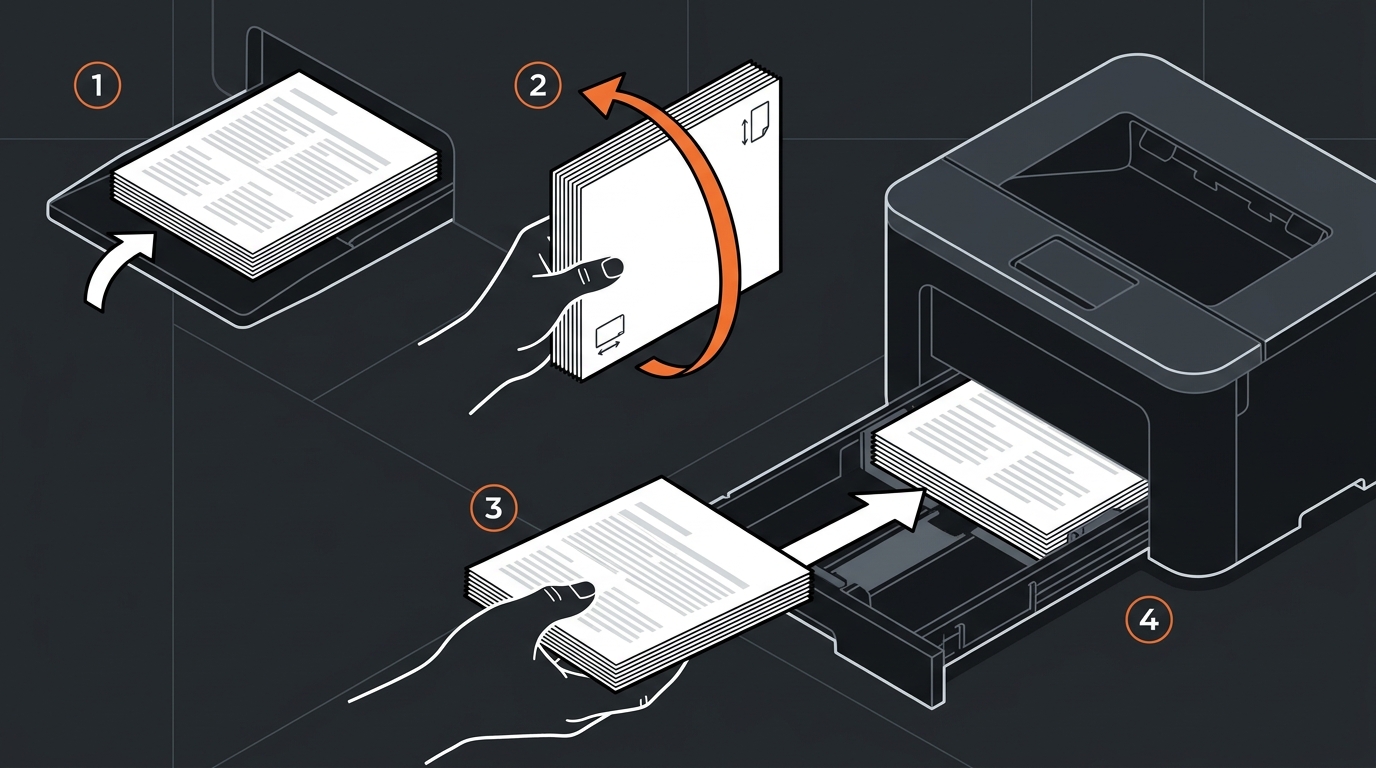
After the first side has printed, take the stack from the output tray and carefully place the sheets back into the printer input tray:
- The correct orientation depends on your printer's paper-feed direction (top feeder vs. front bottom tray).
- Turn the stack over so the blank side faces the printer's printing heads.
- Do not shuffle or scramble the order of the sheets.
- Print a single test sheet before printing the entire booklet stack.
5 Print the Second Side (Pass 2)
Print the remaining booklet pages on the blank reverse side of the paper:
- Select "Even Pages Only" (Sheet 2, Sheet 4, Sheet 6...) in the print dialog.
- Check that the back pages aren't upside down or reversed relative to the front covers.
- If the orientation is incorrect, rotate the way you reinsert the paper 180° and test again.
6 Fold and Assemble
Once both sides are completely printed:
- Stack the sheets correctly: Align all edges in sequential order (Sheet 1 on the outside).
- Fold in half: Fold the entire stack down the middle vertical spine.
- Check the page order: Flip through to verify pages progress sequentially from Page 1 to the back cover.
- Staple along center fold: Place 2 staples along the center spine using a long-arm stapler or booklet stapler if needed.
Ready to Print Your Booklet?
Convert your PDF into print-ready 2-up imposed sheets in seconds. 100% private and free.
Launch Free Booklet Maker