
How to Print Double-Sided PDF Manually
Don't have an automatic 2-sided duplex printer? Follow this foolproof 2-pass manual printing method using the "Pencil Test" to print perfect booklets without upside-down pages.
How to Print Double-Sided Manually
Print all odd pages first (Pass 1), then re-insert the printed stack into your paper tray and print all even pages (Pass 2). The key is knowing which way your printer feeds paper — use a simple pencil mark on a blank sheet to test orientation before committing to the full print run.
Why Manual Duplex Printing Often Fails
Every home printer model feeds paper differently. Some pull from the top tray face-down; some feed from a front cassette face-up; others reverse the sheet through an internal C-path.
When you manually print the front sides, take the stack, and put it back into the paper tray, it is easy to flip it the wrong way. The result is wasted ink, upside-down back pages, or backwards page order.
The 30-Second "Pencil Test" (Never Ruin Paper Again)
Before printing a 30-page booklet, calibrate your printer feed direction with a single sheet of scratch paper:
Mark the Sheet
Take one blank sheet. Draw a small pencil arrow pointing UP on the top-facing side and write "TOP".
Print a Single Page
Put this marked sheet into your input tray and print just Page 1 of any document.
Inspect the Result
Look at where the text printed relative to your pencil arrow. You now know if your printer prints on the Face-Up or Face-Down side, and whether it feeds Head-First or Foot-First.
Step-by-Step 2-Pass Manual Booklet Printing
Print Odd Pages Only (Sheet Fronts)
Export your imposed PDF from PDF to Booklet. Open the print dialog and configure:
- Pages to Print: Select "Odd Pages Only" (Sheet 1, 3, 5, 7...).
- Page Order: Normal (1 to N).
- Orientation: Landscape.
Re-insert the Printed Stack into the Tray
Take the printed odd stack directly from the output bin:
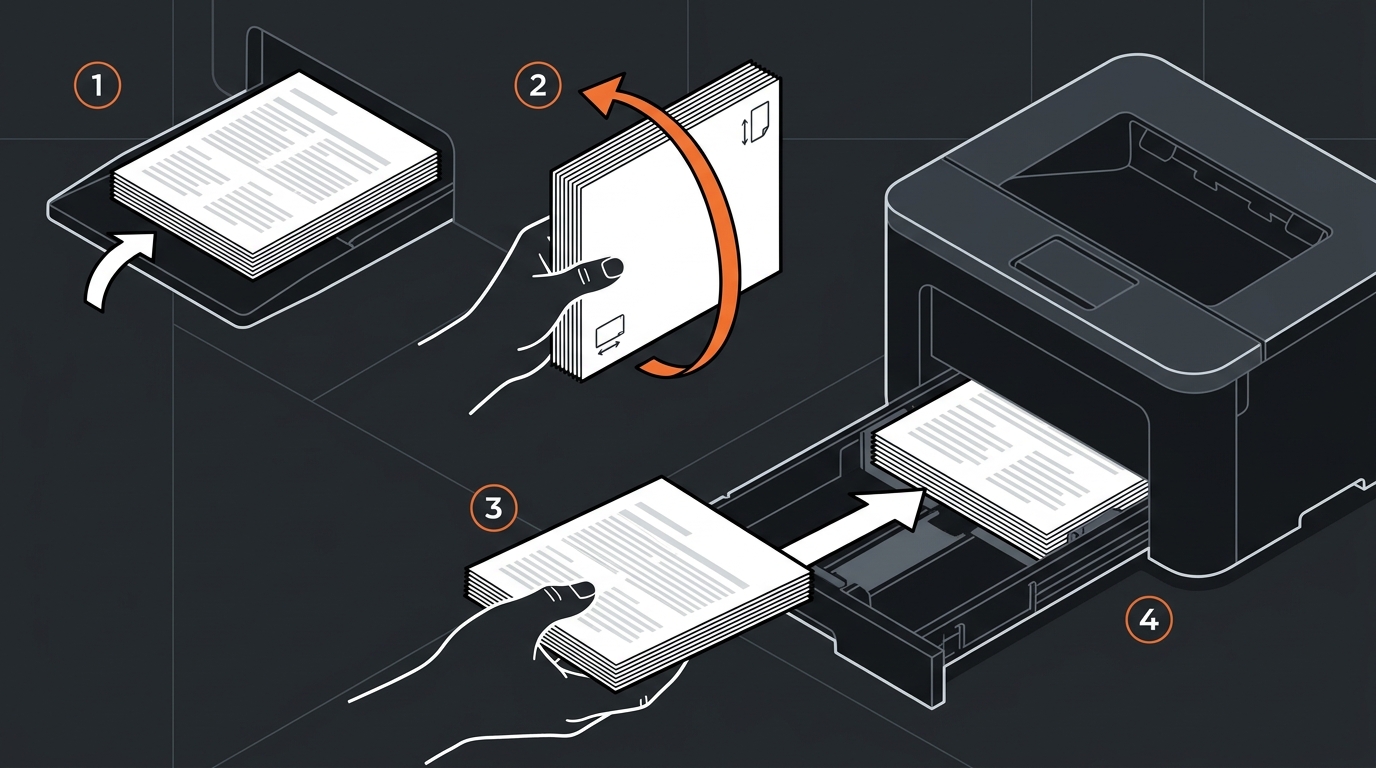
Print Even Pages Only (Sheet Backs)
In your print dialog:
- Pages to Print: Select "Even Pages Only" (Sheet 2, 4, 6, 8...).
- Page Order: If your output tray collates face-up, choose Normal. If face-down, select Reverse Order so Sheet 2 backs up onto Sheet 1.
How to Fix Upside-Down Back Pages
Booklets are printed in landscape orientation. If your back pages are printed upside down, it means the paper was flipped on the Long Edge instead of the Short Edge when re-inserted.